







Why Your Webcam LED Can't Be Trusted and How to Fix It
Why is the webcam light failing as a security indicator?
Most developers and founders assume that if the small green or white LED next to their laptop camera is off, the sensor is dead. This is a dangerous assumption. In older hardware, the LED and the camera sensor were often wired in a serial circuit, meaning the camera couldn't get power unless the light was on. Modern internal webcams are frequently controlled by firmware that allows a software-level command to decouple the light from the video stream.
Attackers using Remote Access Trojans (RATs) target the camera driver or the firmware directly. By modifying how the hardware responds to the On command, they can initiate a stream while suppressing the signal to the LED. If you are building products that handle sensitive data, you need to treat an integrated camera as an always-on microphone and lens unless you have physical overrides.
How can you detect a hijacked camera when the light is off?
Since the hardware indicator is unreliable, you have to look at the operating system's process management and network behavior. Your OS keeps a log of which applications are requesting access to media devices. You can find these unauthorized connections by looking at the right telemetry.
- Check active process handles: On Windows, use Process Explorer to search for the
\Device\Sensor0handle. This shows exactly which.exeis currently pulling data from the camera. - Monitor background data spikes: A webcam stream requires bandwidth. If your machine is idling but showing a consistent outbound upload speed of 500kbps to 2Mbps, a hidden video stream is a likely culprit.
- Audit macOS privacy settings: Go to System Settings > Privacy & Security > Camera. This list shows every app that has requested access. If an app you don't recognize or a utility that shouldn't need video is toggled on, revoke it immediately.
- Review browser permissions: Often the 'piracy' isn't a complex virus but a malicious tab you left open. Check your browser settings to see which domains have persistent permission to use your media devices.
What are the practical steps to secure your hardware?
Software patches are a constant game of cat and mouse. If you want to ensure privacy, you have to move down the stack to the physical layer. This doesn't mean you need to be paranoid; it means you need to be practical about your workspace setup.
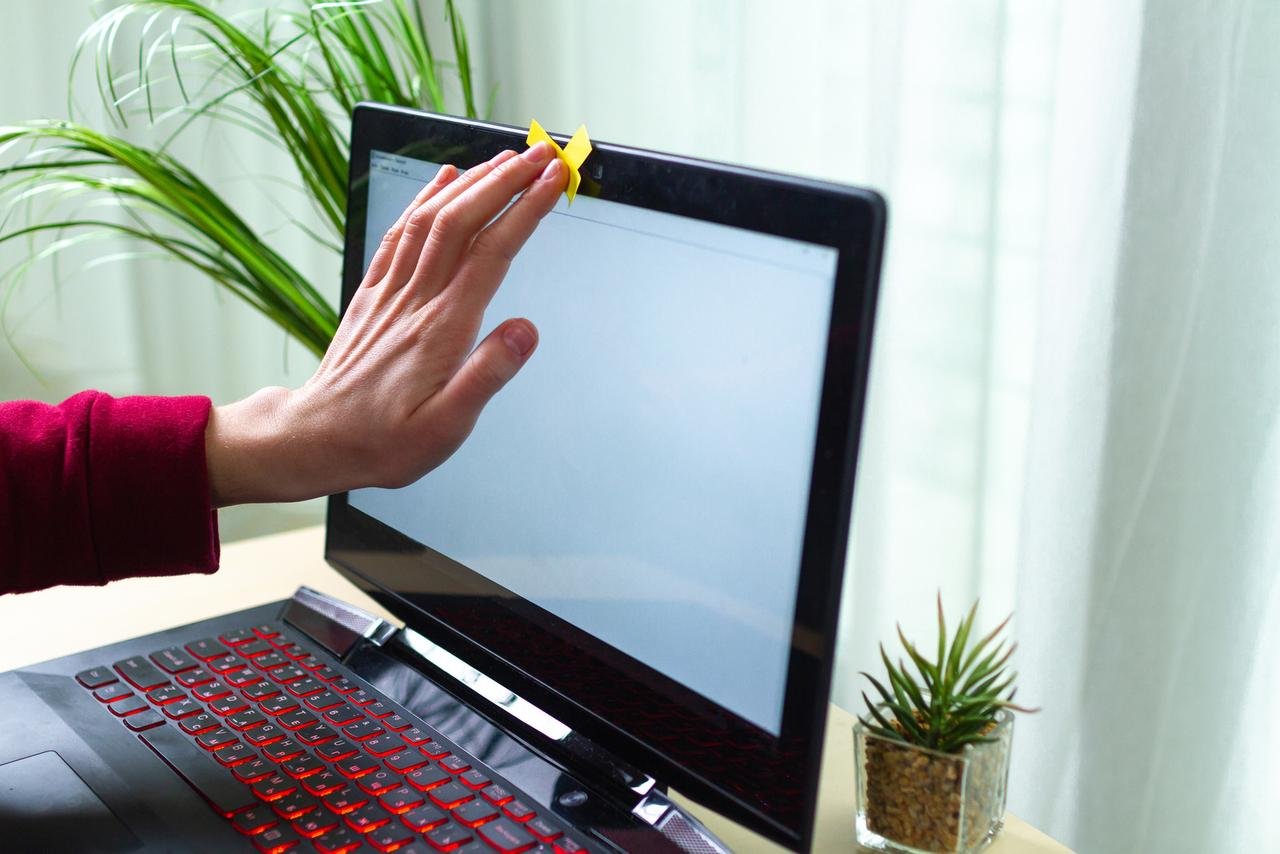
The most effective solution is a physical shutter. Many modern enterprise laptops now include a sliding plastic cover built into the bezel. If yours doesn't, a piece of opaque tape or a third-party slider is the only 100% guarantee that no one is watching. It is a low-tech solution to a high-tech problem that works every time.
For those using external USB webcams, the fix is even simpler: unplug the device when it is not in use. USB devices can be re-enumerated by the OS at any time, but they cannot bypass a physical disconnection. If you use a desktop setup, keep your camera plugged into a visible USB hub on your desk rather than the back of the monitor so you can see its status and pull the cable easily.
Finally, keep your firmware updated. Manufacturers release microcode updates to fix the very vulnerabilities that allow the LED to be bypassed. Use your vendor's official update tool—like Lenovo Vantage, Dell Command Update, or macOS System Updates—to ensure your hardware controllers are running the latest, most secure logic. Start by checking your 'Apps with access to camera' list today; you might be surprised by what has permission to watch.
Createur de films IA — Script, voix et musique par l'IA